

You’ve invested heavily in a high-end CPU and GPU, but mid-match, your frame rate suddenly drops, your ping spikes, or a notification pops up, ruining a clutch moment. The culprit is often your antivirus. While security is non-negotiable, finding how to stop antivirus from dropping FPS is the key to maintaining a stable competitive edge.
The core problem lies in background tasks that consume vital CPU cycles and disk access speed. This guide provides the definitive, step-by-step troubleshooting path to ensure your security software is a passive guard, not an active bottleneck. By implementing these settings, you eliminate lag and guarantee that your CPU is dedicated 100% to your game. If you’re considering an upgrade, check out our guide on the best low-impact software: The Best Antivirus for Gaming in 2026.
1. The Immediate Fix: Game Mode Optimization
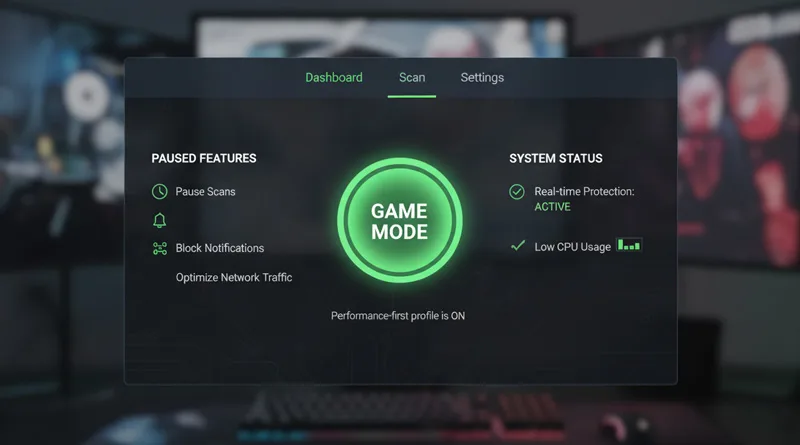
Every modern security suite offers a “Game Mode,” “Silent Mode,” or “Performance Mode.” This is your first and most effective step in learning how to stop antivirus from dropping FPS.
Step 1: Locate and Activate the Game Mode
- Action: Log into your antivirus dashboard (Bitdefender, Norton, Kaspersky, etc.). Look for a prominent button or setting labeled Game Mode or Silent Mode.
- Result: Activating this feature will automatically pause or reduce the priority of the most demanding tasks: scheduled scans, system updates, and non-critical background processes.
Step 2: Check Automation and Scheduling
- Action: Verify that your scheduled full-system scans are set to run only when the PC is idle (i.e., when the PC has been untouched for 10+ minutes) or during the middle of the night.
- Result: This ensures a system-intensive task never runs while you are actively in a game.
Step 3: Disable All Non-Critical Notifications
- Action: In the settings menu, disable all pop-up notifications except for critical, immediate threats (e.g., an active infection). Disable renewal alerts, update notifications, and security summary pop-ups.
- Result: Prevents a sudden, game-breaking interruption from a non-threat.
2. Advanced Troubleshooting: How to Stop Antivirus From Dropping FPS with Exclusions
If Game Mode isn’t enough, you need to manually tell your antivirus to ignore the large, frequently-accessed files that cause the most slowdown: your game folders.
Step 1: Exclude Your Game Directories
- Action: Go to your antivirus’s Exclusions, Exceptions, or Allowed Programs settings. Add the main folders for your game library (e.g., the primary folder for Steam, Epic, or Battle.net).
- Crucial Note: You must manually type the full file path (e.g., C:\Program Files (x86)\Steam\steamapps\common\VALORANT).
- Result: The antivirus stops performing real-time scans on the massive game files being accessed, dramatically reducing disk read-write lag. This is the single most effective manual fix for how to stop antivirus from dropping FPS.
Step 2: Exclude Key System Processes
- Action: For competitive games, you can temporarily exclude the game’s executable file (.exe) from active scanning while the game is running.
- Result: This frees the game process from any potential CPU overhead caused by the antivirus monitoring its activity.
Step 3: Adjust the Antivirus’s System Priority
- Action: In rare cases, you can use the Windows Task Manager to manually set the priority of the antivirus software to “Low.”
- Result: This dedicates more CPU resources to the game, ensuring the game process always dominates the CPU.
3. The Windows Defender Factor
Windows Defender is the baseline security solution, and knowing how to stop antivirus from dropping FPS applies to it as well, even though it’s the lightest option.
Using Windows Focus Assist
Windows Defender respects the built-in Windows Focus Assist (formerly known as Game Mode).
- Action: Go to Windows Settings -> System -> Focus Assist. Set it to activate automatically when you are playing a game.
- Result: This suppresses all Windows Defender notifications and limits background activity when a game is running.
Windows Defender Exclusions
Windows Defender allows you to set manual exclusions just like any paid program.
- Action: Go to Windows Security -> Virus & threat protection -> Manage settings -> Add or remove exclusions. Add your game folders and game .exe files here.
. The Final Nuclear Option: When to Re-Install Security Software
If the troubleshooting steps fail and you are still experiencing performance issues, the problem may be a corrupted installation or a fundamentally incompatible piece of software. If you have followed every guide on how to stop antivirus from dropping FPS and are still lagging, here is your final path.
The Problem of Corrupted Installations
Over time, constant updates and Windows changes can corrupt the registry entries of antivirus software, leading to excessive background CPU usage.
- Action: Completely uninstall the software using the manufacturer’s dedicated removal tool (not the Windows uninstaller). Restart the PC, and then perform a fresh installation. This often resolves performance issues caused by registry bloat.
Switching to a Lower-Impact Suite (The Best Long-Term Fix)
If a fresh installation does not solve the problem, your current software is simply not a good fit for competitive gaming. It is fundamentally engineered to prioritize security above all else, making it too CPU-intensive.
- Action: Switch to a proven low-impact suite like Bitdefender or a Game Mode-focused brand like Norton. The best solution for how to stop antivirus from dropping FPS is to start with the correct software.
Conclusion: Make Security a Passive Protector
The solution for how to stop antivirus from dropping FPS is not to uninstall it, but to optimize it. A stable, secure PC is a fast PC.
By activating Game Mode, setting up folder exclusions, and manually managing process priority, you turn your active protection into a passive, resource-friendly guardian. If your current antivirus does not offer a reliable, automated Game Mode, it is fundamentally incompatible with competitive gaming and should be replaced.
For security software that is engineered from the ground up to respect your frame rate, consult our ultimate guide: The Best Antivirus for Gaming in 2026.